






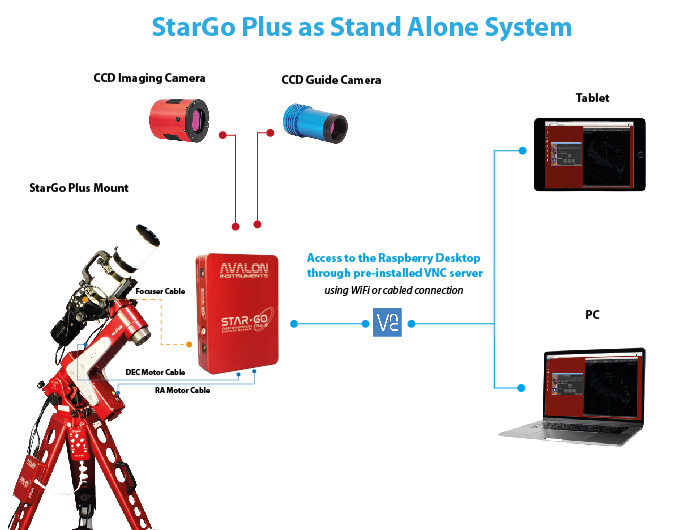
Two main connection methods with the StarGo Plus
-
StarGo Plus Advanced Control
-
StarGo Plus Advanced Control - PC Remote Operation
Two main connection methods with the StarGo Plus
StarGo Plus Advanced Control
StarGo Plus Advanced Control - PC Remote Operation
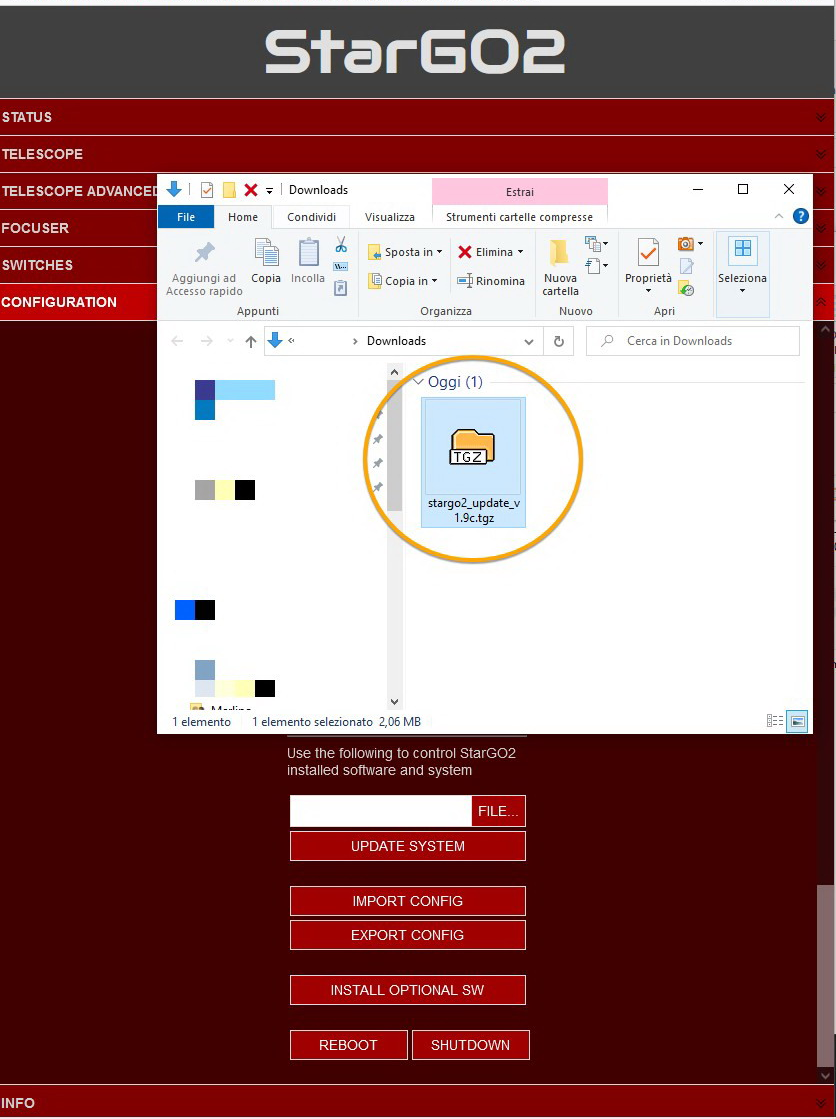
Download the update or patch the required.
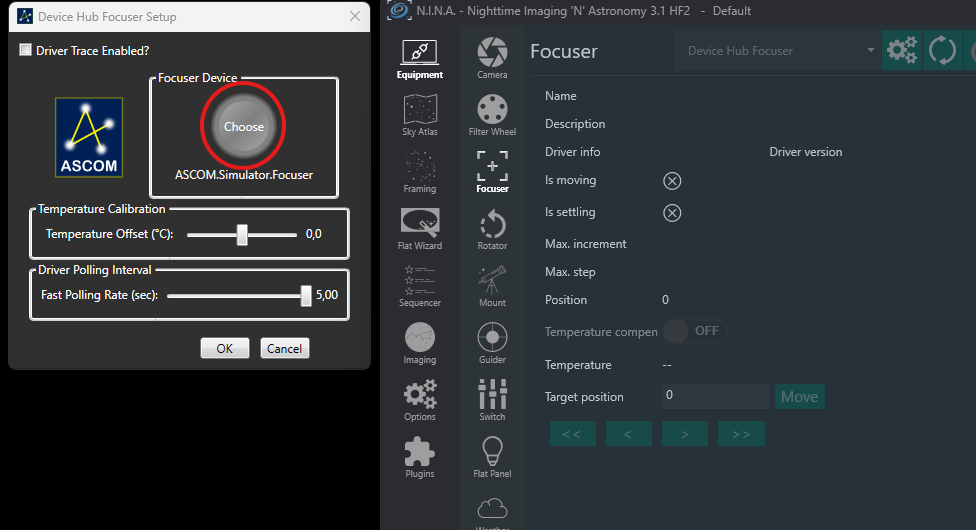
The StarGo Plus comes with a dedicated port for the Focuser managing. When compatible focuser are connected to this port is possible the control through the StarGo Plus WebApp and via ASCOM Alpaca compatible softwares. N.I.N.A. support ASCOM Alpaca so it is possible to manage Focuser connected to the StarGo Plus also through this software. In order to detect the Avalon UD Focuser driver is required to enable the ASCOM Alpaca discovery as described below.
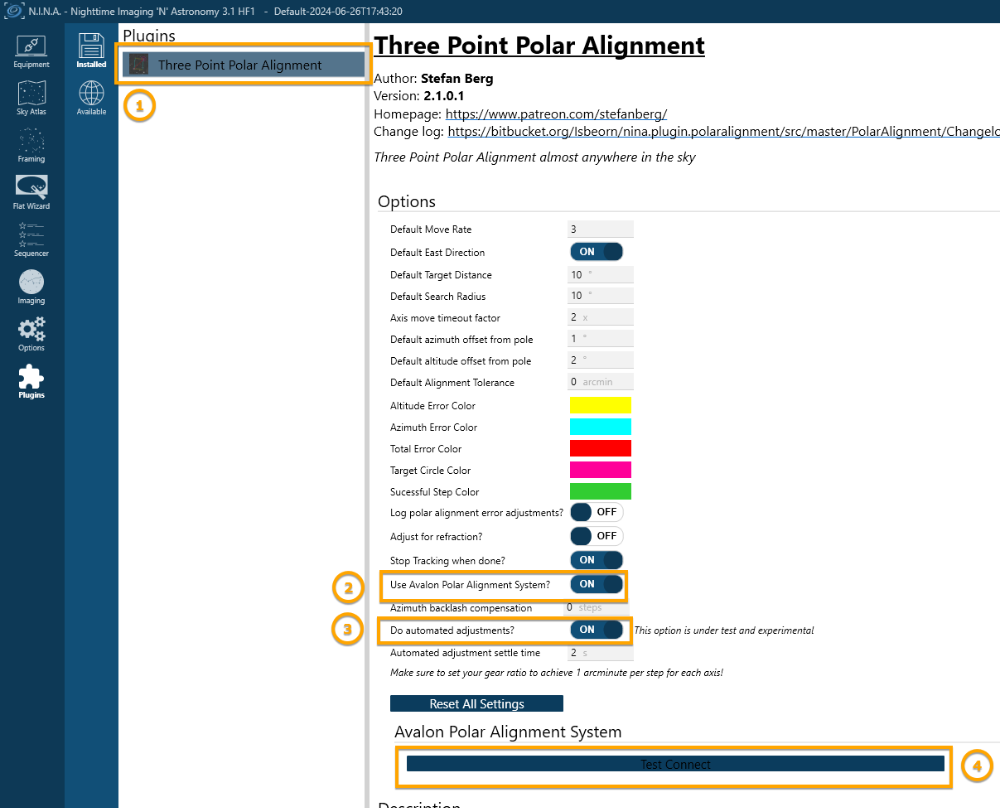
Using the N.I.N.A. plugin with the UPAS is really easy, you just need to download the Three Point Polar Alignment plugin from within N.I.N.A, afterwards you need to enable the "Use Avalon Polar Alignment System" option and click on the "Test connect button".
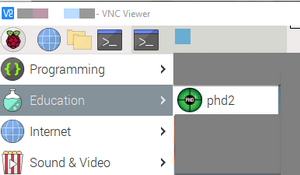
Software installation commands
NOTE: The following commands must be run from the terminal and the StarGO2/Plus must be connected to the Internet!
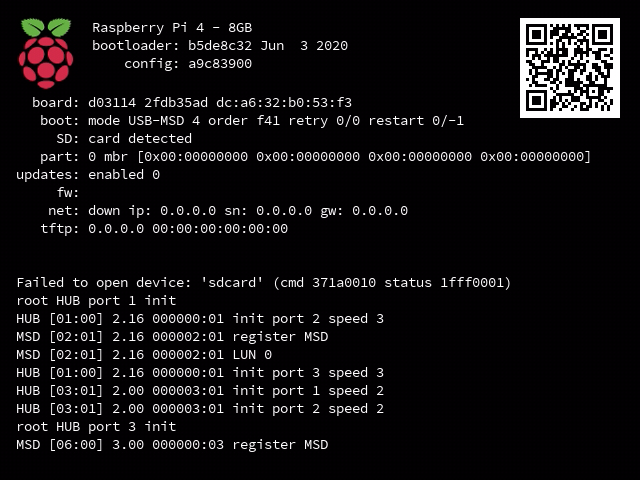
This procedure overwrite the internal SD system with a completely new system (version 2.1_20231103)starting from a USB pendrive system, in case you have personal data, images or other files, please make a copy otherwise everything will be lost!
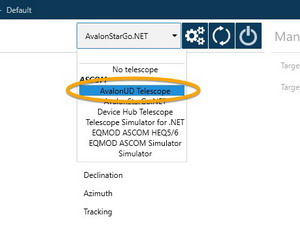
In order to connect the mount with StarGo Plus/StarGo2 Pro driver with N.I.N.A. is required to choose the Avalon UD Telescope driver from the Telescope drop down menù list. This option will be available only after it will be selected with the ASCOM chooser.
Inside N.I.N.A. is not possible to launch the ASCOM chooser from the Telescope section menù so it is required to do this operation at least once by using external software app, as for example Carte du Ciel, Stellarium etc...

The SG+/Pro (StarGo Plus/StarGo2 Pro) are Raspberry Pi based Astronomical control system, they have been designed to work in two main hardware connection methods:
- Method 1: StarGo Plus as a Hotspot
- Method 2: StarGo Plus connected to your network, via LAN or Wi-Fi
Usually the method 2 via LAN is accomplished by using an Ethernet cable connected to a router.
In a previous troubleshooting article we have explained how to establish a connection between a PC and a SG+/Pro by using an Ethernet cable.
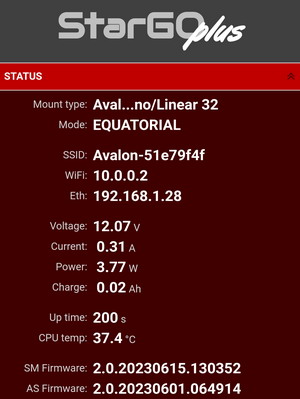
The StarGo Plus is a Raspberry Pi based controller that comes with a dedicated WebApp for a complete Astronomical setup management.
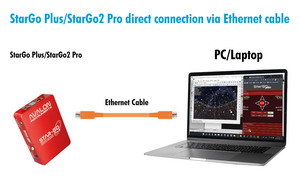
The SG+/Pro (StarGo Plus/StarGo2 Pro) are Raspberry Pi based Astronomical control system, they have been designed to work in two main hardware connection methods:
- Method 1: StarGo Plus as a Hotspot
- Method 2: StarGo Plus connected to your network, via LAN or Wi-Fi
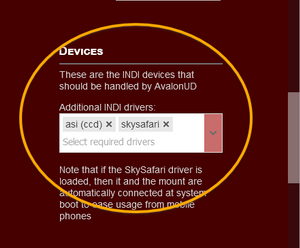
If the camera is connected to the StarGo Plus, the corresponding camera driver should be first selected in the StarGo Plus WebApp (see image below). If the device has been connected after the StarGo Plus start up try a system power cycle.
This behavior may be related to latest Operative System update that can create issues with previous StarGo versions.
The issue can be solved by upgrading to the latest StarGo versions available on the Support Page reserved download area.
Users with EVO-zero mount should download and install the Install_StarGo_700_B5.exe whereas all the other users should download and install the Install_StarGo_640_SP6.exe.